
Have you ever thought that your Excel sheets might hold the key to real growth? It's amazing how a flurry of numbers can turn into a clear glimpse of what’s happening and what might come next.
Trend analysis helps you see easy-to-understand patterns in your data. With smart charts and trendlines, you get a quick look at your progress and a hint at future moves.
In our discussion, I'll walk you through how to set up your data, clean it up, and build lively charts that reveal the true story behind your figures. Get ready to see how small tweaks in your Excel dashboard can lead to faster, more confident decisions.
Rapid Guide to Implementing Trend Analysis in Excel Dashboards
Trend analysis turns boring numbers into usable insights on your Excel dashboards. It helps you see clear patterns through charts and trendlines, so you can quickly understand how things are doing and even guess what might come next. This simple method helps businesses make smarter, faster decisions by matching strategies to real data moves.
-
First, get your time-based data into a neat table. For example, arrange your sales records or survey results in columns with clear time stamps. This basic setup makes sure your trend analysis is built on solid ground.
-
Next, clean up the data and check it for mistakes using Excel’s built-in tools. Remove any duplicates and fix errors so the results aren’t thrown off by bad data.
-
Now, create a dynamic line chart connected to your table. This chart will update automatically as you add or change your data, giving you a clear, up-to-date view.
-
Then, add a trendline to the chart by going to Chart → Add Trendline. Choose a linear or exponential style based on your data. This step helps you see the main trends at a glance.
-
Use functions like FORECAST or TREND to project future values. This adds another series to your chart, showing you where the data is headed based on past performance.
-
Lastly, set up automatic updates through data connections or VBA macros. This makes sure your dashboard always shows the latest information without extra work.
Following these steps will help you build a trend analysis dashboard that really works. With your data organized, cleaned, and shown in a dynamic chart, you can spot trends and plan ahead with ease. Each part, from the trendline to the forecasting functions, adds a piece to the story behind the numbers, keeping everything fresh and helping you take smart actions every day.
Preparing and Cleaning Data for Trend Analysis in Excel Dashboards

First, bring in your data from various sources like Excel Tables, CSV files, or live connections. Once you have your data, sort it into neat, structured tables. For example, if you’re working with sales data, include clear time stamps and group similar items together. This simple setup helps your data be more manageable and sets a solid base for smart trend analysis.
Next, take a moment to check your data’s accuracy. Use Excel’s built-in tools to spot and fix errors. Remove any duplicates and correct mistakes so your numbers stay reliable. It’s a bit like tidying up a classroom, everything should be in its rightful place. As you rework your data into dynamic Excel Tables, give important sections easy-to-remember names for quick reference.
Finally, set up Pivot Tables and slicers to break your data into meaningful chunks. Pivot Tables let you group your information by category, location, or time period before you show any trends. When you work with dynamic ranges, your charts update automatically as things change. This clear and organized method makes it easier to spot trends and supports sound decision-making every step of the way.
Applying Trendline and Forecast Functions in Your Excel Dashboard
Figuring out the best way to forecast your data is all about finding techniques that make your numbers speak clearly. You can mix manual methods with Excel’s built-in tools to see clear trends in your data. Whether you choose simple best-fit lines or a moving average model, the aim remains the same: uncover a pattern hidden in the raw figures.
Linear Trendline
Adding a linear trendline is a simple yet handy way to spot a steady change in your data. First, insert your chart and then add the trendline from the chart options. This line gives you a clear picture of how your data moves overall. For example, if monthly sales are on a steady rise, the trendline helps you see that upward shift at a glance. It’s a quick check that often sets the stage for deeper analysis.
Exponential and Moving Average Smoothing
When your data feels noisy and unpredictable, smoothing methods can really help bring out the underlying trend. With Excel’s Data Analysis Toolpak, calculating moving averages becomes an easy task that cuts through short-term ups and downs. Exponential smoothing works by giving extra weight to the latest numbers, which is handy when recent data mirrors current conditions better. Think of it as watching a choppy sea and then noticing the calm tide once you filter out the rough waves.
FORECAST and TREND Functions
Excel also offers built-in functions like FORECAST.LINEAR and TREND that simplify predicting future data points. Using FORECAST.LINEAR, you simply put in your set of known data and a target value, and Excel does the rest. The TREND function goes further, letting you generate an array of predicted values that you can display directly on your dashboard. These functions are quick tools that extend your current trends into future periods. And don’t forget, checking the differences between actual and forecasted data can help you fine-tune your predictions over time.
Enhancing Interactivity and Filtering for Trend Insights

Interactive dashboards become much more engaging when you include slicers and form controls. These tools let users quickly choose different time periods, segments, or regions. For instance, imagine a slicer for quarterly sales that lets a decision-maker click on “Q1” and see the charts update right away. This simple action transforms a static display into a live, interactive tool that makes key insights accessible with just one click.
Form controls like dropdown menus, checkboxes, and buttons give users the power to explore data without needing any advanced technical know-how. Picture a dashboard where toggling a checkbox switches between revenue and expense views, or a dropdown menu filters data by region. Clear labels such as “Select Category” or “Choose Period” help everyone know exactly what to do, encouraging deeper engagement with the data.
Adding sparkline visuals brings another cool layer of interactivity. These tiny charts, tucked into table cells, offer mini snapshots of trends over a set time, like a small line chart showing sales performance over the last year. When you pair these visuals with macro-enabled controls that reset filters or hide trends, you get a compact, powerful overview that keeps the main chart area neat and uncluttered.
Building an intuitive interface means mixing interactive features with clear, friendly prompts. Simple cues like “Click to filter” or “Select a time frame” make even a complex data set feel easy to navigate. In the end, this thoughtful design helps everyone quickly spot trends and make well-informed decisions while exploring all the dashboard’s capabilities.
Best Practices for Visual Formatting of Trend Charts in Excel Dashboards
When you’re setting up trend charts, using color wisely makes all the difference. Stick with a steady color scheme and add a pop of contrasting color for trendlines and raw data. For example, a deep blue for columns paired with a bright red for trendlines really helps the different parts stand out. And hey, having your own chart templates that lock in fonts, gridlines, and styles saves you tons of time while keeping things consistent.
Next, think about your axes and gridlines. Soft gridlines keep eyes focused on the trends instead of cluttering the view. Fine-tuning your axis scales to match the data range, along with clear number formatting that shows the right units, makes comparisons easy to understand. It’s all about balancing detail and clarity so every statistic is easy to read.
Mixing up chart types can also make your dashboard pop. Combining column, line, and area charts shows the same data from different angles. This not only emphasizes trends but also highlights raw numbers in a more engaging way. Customize your chart template to set the style for gridlines and fonts, it’s a little detail that can really elevate the look. Clear visuals like these not only impress but also help drive smart decisions.
Automating Updates and Tracking Trend Metrics in Excel Dashboards
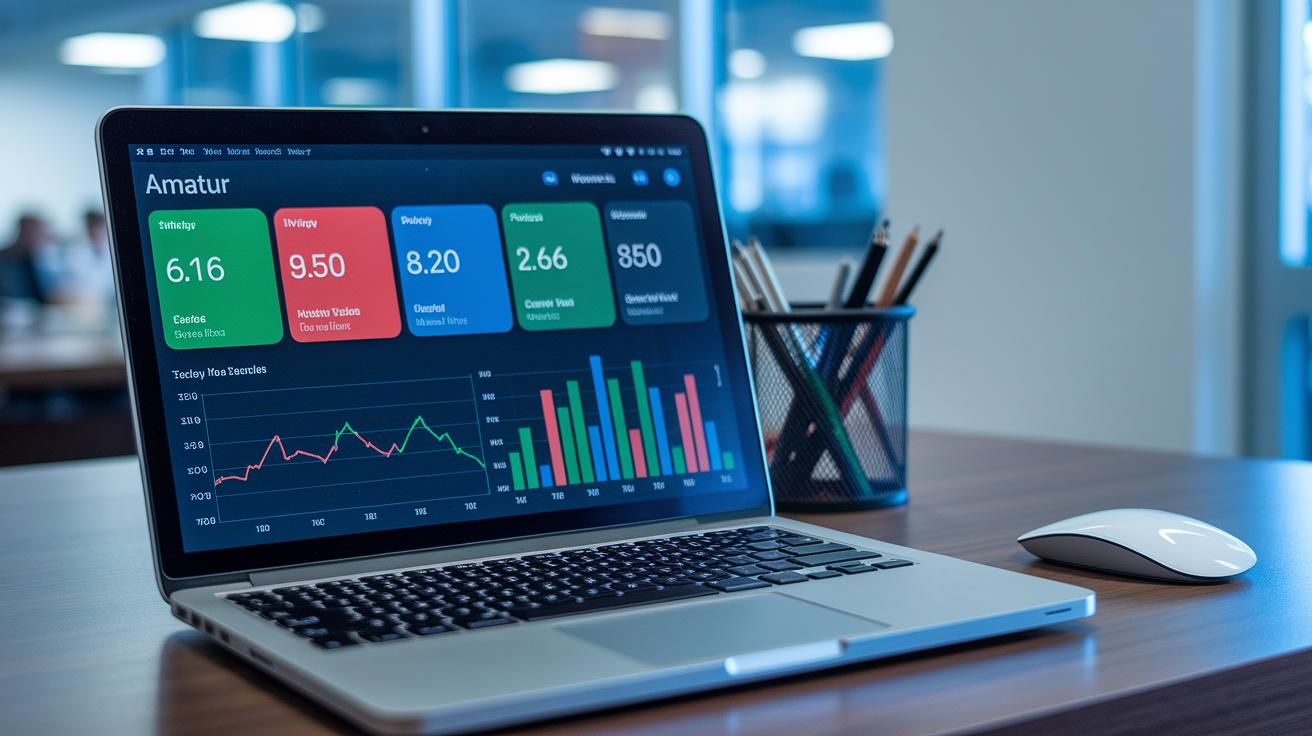
Power Query connections and VBA macros make it simple to keep your Excel dashboard current without constant manual updates. You set up Power Query to pull fresh data from your sources at set times, which means that anytime new data arrives, Excel automatically recalculates your trend series. And when you add VBA macros, they can handle extra tasks like refreshing charts or updating metrics. Together, they work like a well-oiled machine that keeps your performance trends up-to-date.
Next, you can link KPI cards directly to your trend charts to ensure every number reflects live data. When you connect visuals like year-to-date growth, moving averages, or variance measurements to live trendlines, they update in real time as changes occur. Using formulas tied to your data sources means every update is instantly visible on your KPI cards. It’s a clear, seamless way to make sure your dashboard tells the true story of your performance.
Finally, calendar tables are a smart way to organize your data by month, quarter, or fiscal year. This setup makes it much easier to track performance metrics and spot seasonal trends. With regular refreshes and connected KPI visuals, your dashboard transforms into a real-time tool that accurately monitors growth and trends as they happen.
Final Words
In the action, the post showed how to build Excel dashboards that deliver clear trend insights. We explored steps from preparing data and creating dynamic charts to adding trendlines and ensuring automatic updates.
Breaking down each stage, the guide explained cleaning data, applying forecasting functions, and enhancing interactivity with slicers and controls. It all leads to a strong approach to risk management and smart investing while implementing trend analysis in Excel dashboards.